
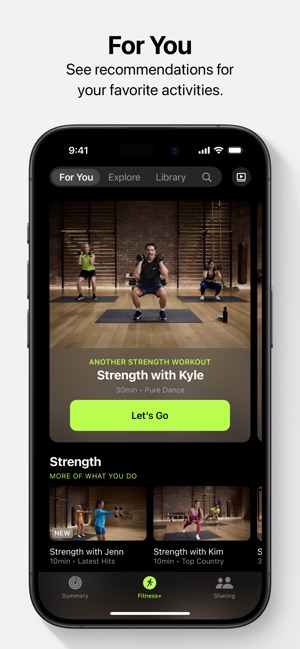
Are you ready to bring your Apple Fitness experience to the big screen? Watching your workouts on TV can make exercising more motivating and enjoyable.
Imagine following your favorite trainer’s moves with crystal-clear visuals, right from the comfort of your living room. If you’ve been wondering how to get Apple Fitness on your TV, you’re in the right place. This guide will walk you through simple steps to connect Apple Fitness to your television, so you can take your fitness routine to the next level.
Keep reading to unlock the full potential of your workouts!

Credit: apps.apple.com
Setting Up Apple Fitness On Tv
Setting up Apple Fitness on your TV brings workouts to a larger screen. It creates a more immersive exercise experience. The process is simple and quick. You need to check your device compatibility and meet certain streaming requirements first. This section explains these details.
Compatible Devices For Apple Fitness
Apple Fitness works with a few specific devices. These let you stream workouts smoothly on your TV. Here are the main compatible devices:
- Apple TV 4K (2nd generation or later)
- Apple TV HD
- Smart TVs with AirPlay support (e.g., Samsung, LG, Sony models)
- Streaming devices that support AirPlay (like Roku with AirPlay feature)
Using an Apple TV device offers the best experience. Smart TVs with AirPlay allow direct casting from iPhone or iPad.
Requirements For Streaming On Tv
Some key requirements ensure smooth streaming of Apple Fitness on your TV. Follow these to avoid interruptions:
- Apple Fitness+ subscription active on your Apple ID
- iPhone, iPad, or Apple Watch running the latest software version
- Wi-Fi connection with good speed on both TV and Apple device
- Apple TV or AirPlay-enabled TV connected to the same Wi-Fi network
- Bluetooth enabled on iPhone or Apple Watch for syncing workout data
Meeting these requirements guarantees clear video and proper tracking of your exercises.

Credit: www.cnet.com
Connecting Apple Fitness To Your Tv
Connecting Apple Fitness to your TV transforms your workout experience by bringing large-screen visuals and immersive sound into your exercise space. It’s easier than you might think to get your favorite Apple Fitness+ workouts onto your TV, whether you prefer wireless streaming or a direct wired connection.
Think about the last time you tried to follow an intense workout on your phone screen. Wasn’t it a bit cramped? Watching on the TV allows you to see every move clearly, making it easier to keep up and stay motivated. Let’s look at practical ways to connect Apple Fitness to your TV.
Using Airplay With Apple Devices
AirPlay is a wireless technology that lets you stream content from your iPhone, iPad, or Mac directly to an Apple TV or AirPlay 2-compatible smart TV. To use it, just open the Apple Fitness app and tap the AirPlay icon.
Once your TV appears on the list, select it, and your workout video will start playing on the big screen. Make sure your devices are on the same Wi-Fi network to avoid connection hiccups.
Have you noticed how seamless the transition feels when your workout shifts from your phone to the TV? This ease encourages longer, more focused sessions without the distraction of squinting or repositioning your device.
Streaming Via Third-party Apps
If you don’t own an Apple TV or a compatible smart TV, third-party apps like AirScreen or Reflector can help mirror your device’s screen to your TV. These apps work on various streaming devices such as Roku, Amazon Fire Stick, and Chromecast with Google TV.
After installing the app on your streaming device, open Apple Fitness on your iPhone or iPad and start mirroring your screen. This method may introduce slight delays, but it still provides a viable way to enjoy workouts on a larger display.
Is your current setup compatible with these apps? Checking device compatibility beforehand saves you time and frustration, ensuring smooth streaming during your workouts.
Utilizing Hdmi Connections
For a stable and lag-free connection, you can use an HDMI cable to connect your Apple device directly to your TV. You’ll need a Lightning to HDMI adapter (for iPhones and older iPads) or a USB-C to HDMI adapter (for newer iPads and Macs).
Simply plug the adapter into your device, connect the HDMI cable to your TV, and switch your TV’s input to the correct HDMI port. Your Apple Fitness workout will instantly display on the TV screen.
This wired connection is especially useful if your Wi-Fi is unreliable or if you prefer not to worry about battery drain from wireless streaming. Have you tried this setup before? It might surprise you how stable and responsive it feels compared to wireless options.
Exploring Workout Options
Finding the right workout on Apple Fitness+ for your TV can change how you stay active at home. The variety available means you can switch routines to keep things fresh and challenging. How do you know which workout fits your mood or goals today?
Available Workout Types
Apple Fitness+ offers a broad range of workouts that suit different fitness levels and interests. You can try:
- Yoga:Great for flexibility and calming your mind.
- HIIT:High-intensity sessions to boost your cardio and burn calories fast.
- Strength Training:Build muscle using bodyweight or light weights.
- Dance:Fun and energetic moves to keep you motivated.
- Core:Focused exercises to strengthen your abdominal muscles.
- Mindful Cooldown:Relaxation and stretching to end your workout.
Each workout includes clear instructions and options for different skill levels. You can pick the length and intensity that match your available time and energy.
Customizing Your Fitness Routine
Apple Fitness+ lets you tailor workouts to fit your personal goals. You can combine different types to create a balanced routine. For example, pairing strength training with yoga helps improve both muscle tone and flexibility.
Have you tried adjusting workout lengths? Sometimes a quick 10-minute session fits better into a busy day than a full 30-minute workout. Using the Apple Watch with Fitness+ also tracks your progress, helping you see what works best.
Think about your fitness goals and energy levels before choosing a workout. Changing up your routine prevents boredom and keeps your body guessing. What would happen if you tried a dance workout when you usually do HIIT?
Enhancing Your Workout Experience
Enhancing your workout experience on Apple Fitness through your TV transforms exercise from a routine into an engaging, motivating session. Paying attention to how you use the features can help you stay focused and push harder. Small adjustments in how you track progress and what you listen to can make a big difference in your overall fitness journey.
Utilizing Fitness Metrics
Apple Fitness provides detailed metrics like heart rate, calories burned, and exercise duration right on your TV screen. Watching these numbers in real-time keeps you accountable and helps you adjust your effort as needed. For instance, noticing your heart rate drop might encourage you to increase intensity or speed up your pace.
You can also set specific goals based on these metrics. Want to burn 300 calories in a session? Track it live and see how close you are to hitting that target. This constant feedback can make workouts feel more like a game, pushing you to improve every time.
Integrating Music And Audio
Music is a powerful motivator during workouts, and Apple Fitness lets you connect your favorite playlists straight to your TV. Picking upbeat tracks that match the workout’s pace can boost your energy and help maintain rhythm. Have you noticed how a good beat can keep you moving longer without feeling tired?
Beyond music, the audio cues from trainers guide your form and timing, ensuring you get the most out of each movement. Combining clear instructions with motivating tunes creates an immersive experience that feels less like exercise and more like a personal training session. Try experimenting with different genres to see which ones elevate your performance the most.
Troubleshooting Common Issues
Getting Apple Fitness on your TV should be a smooth experience, but sometimes issues arise that can stop you from enjoying your workouts. Troubleshooting common problems quickly can save your time and keep your fitness routine on track.
Resolving Connectivity Problems
One of the most frequent issues is connectivity. If your Apple Fitness app won’t show up on the TV or keeps buffering, start by checking your Wi-Fi connection. A weak or unstable network often causes interruptions.
Try restarting your router and your Apple device. This simple step can clear temporary glitches blocking the connection. Also, ensure your devices are on the same Wi-Fi network—different networks can prevent Apple Fitness from syncing properly.
Have you noticed your Bluetooth devices lagging or disconnecting during workouts? This can interfere with heart rate monitoring or workout tracking. Re-pair your Bluetooth devices to your Apple device and keep them close to avoid signal drops.
Addressing Compatibility Concerns
Not all TVs or streaming devices support Apple Fitness natively. Check if your TV’s operating system is compatible with Apple Fitness or if you need an Apple TV box or AirPlay to mirror your workouts.
Older devices might not support the latest app updates. If Apple Fitness crashes or won’t launch, verify your device’s software is up to date. Sometimes, updating your TV’s firmware or your Apple device’s iOS can solve the problem.
Consider whether your Apple Fitness subscription is active and properly linked to your Apple ID on the device. Sometimes, issues arise simply because the app isn’t authorized to access your subscription on the TV.
Maximizing Benefits Of Apple Fitness
Apple Fitness on TV offers more than just workouts. It helps you build a healthy routine and reach your fitness goals. Using its full features can improve your exercise experience and keep you motivated.
Tracking progress and keeping a steady workout habit are key parts of this journey. These habits make your efforts more effective and rewarding.
Tracking Progress Effectively
Apple Fitness on TV tracks your activity and shows your improvements over time. Watch your calories burned, exercise minutes, and heart rate data. This feedback helps you see real results.
Use the Activity Rings to stay aware of daily goals. Closing the rings means you met your targets. Set small goals to stay motivated and celebrate every success.
Check your workout history regularly. Notice patterns in your performance. Adjust exercises to challenge yourself more or recover as needed.
Tips For Consistent Workouts
- Choose workout times that fit your daily schedule.
- Create a dedicated space for exercising to avoid distractions.
- Use reminders on your Apple device to stay on track.
- Start with short sessions and increase duration gradually.
- Mix different workout types to keep things interesting.
- Invite family or friends to join for extra motivation.
- Listen to your body; rest when necessary to prevent injury.
Credit: www.switchingtomac.com
Frequently Asked Questions
How Do I Access Apple Fitness On My Tv?
You can access Apple Fitness on your TV using an Apple TV device. Simply open the Fitness app on Apple TV and sign in with your Apple ID to start workouts.
Can I Use Apple Fitness On Non-apple Smart Tvs?
Apple Fitness is officially available on Apple TV only. For non-Apple smart TVs, you can AirPlay workouts from your iPhone or iPad to the TV screen.
What Apple Devices Support Apple Fitness+ On Tv?
Apple Fitness+ requires an Apple TV 4K or HD, or an iPhone or iPad paired with AirPlay to stream workouts to your TV.
Is Apple Fitness+ Subscription Required For Tv Workouts?
Yes, an active Apple Fitness+ subscription is required to access workouts on your TV. You can subscribe through your Apple ID account.
Conclusion
Getting Apple Fitness on your TV is simple and quick. Use an Apple TV or AirPlay from your iPhone or iPad. Make sure your devices are on the same Wi-Fi network. Open the Fitness app and start your workout. Seeing exercises on a big screen helps keep you motivated.
Try it today and enjoy fitness in a new way. Staying active has never been easier or more fun. Give your workouts a boost with Apple Fitness on TV.