

Are you looking to get the most out of your Apple Fitness experience? Adding your own workouts can make your fitness routine more personal and effective.
Imagine having all your favorite exercises tracked in one place, helping you stay motivated and reach your goals faster. You’ll learn exactly how to add workouts to Apple Fitness step-by-step, so you can take control of your health journey with ease.
Keep reading to discover simple tips that will transform the way you move and track your progress every day.
Setting Up Apple Fitness
Getting started with Apple Fitness is easier than you might think, but setting it up correctly is key to making the most out of your workouts. Whether you’re new to Apple’s ecosystem or just want to use Fitness for tracking your progress, the initial setup lays the groundwork for a smooth experience. Let’s walk through the essential steps to get Apple Fitness ready on your device.
Downloading The App
First, check if the Apple Fitness app is already on your device. On most newer iPhones and iPads, it comes pre-installed. If you don’t see it, open the App Store and type “Apple Fitness” into the search bar.
Tap the download button to install the app. Keep your internet connection stable during the download to avoid interruptions. Once installed, open the app to start exploring its features.
Creating An Apple Id
To use Apple Fitness, you need an Apple ID. This account links your device with Apple services and stores your workout data securely. If you don’t have one, creating an Apple ID is straightforward and free.
Go to the Settings app on your iPhone or iPad, tap “Sign in to your iPhone,” and then select “Don’t have an Apple ID or forgot it?” Follow the prompts to create your account.
Think about the email address you want to use—it will be your login. Also, choose a strong password and set up security questions. This protects your fitness progress and personal information.
Connecting Your Device
Connecting your device is the first essential step to adding workouts to Apple Fitness. Without a proper connection, your workout data won’t sync, and you’ll miss out on tracking your progress accurately. Let’s look at how to establish this connection smoothly with your iPhone and Apple Watch.
Syncing With Iphone
Your iPhone acts as the central hub for Apple Fitness. To sync your workout data, ensure your iPhone is updated to the latest iOS version. This keeps all fitness features compatible and running smoothly.
Open the Fitness app and check if your data sources, like third-party fitness apps or accessories, are connected. You can do this by navigating to Settings > Privacy > Healthand verifying permissions.
Have you noticed your steps or calories not updating? Sometimes, simply restarting your iPhone can resolve syncing issues quickly. Also, make sure Bluetooth is turned on to allow seamless data transfer.
Pairing With Apple Watch
Pairing your Apple Watch with your iPhone is crucial if you want real-time workout tracking. The Watch captures heart rate, movement, and other metrics that Apple Fitness uses to give you detailed insights.
To pair, open the Watch app on your iPhone and follow the on-screen instructions. Keep both devices close to each other during this process to avoid interruptions.
If you’ve paired before but workouts aren’t showing, try unpairing and then re-pairing your Apple Watch. This can fix hidden glitches and restore proper syncing.
Think about how often you rely on real-time feedback during workouts. Having your devices connected ensures you never miss a beat or a progress update.
Navigating The Interface
Navigating the Apple Fitness interface is simple and user-friendly. It helps you track workouts and progress easily. Understanding the layout saves time and makes your experience smooth.
The app focuses on clear visuals and easy access. You can quickly find workout options and settings. This section breaks down the main parts of the interface.
Exploring The Dashboard
The Dashboard is the heart of Apple Fitness. It shows your daily activity rings and workout summary. You see how close you are to your goals at a glance.
Key features on the Dashboard include:
- Activity rings for Move, Exercise, and Stand
- Recent workouts and total calories burned
- Suggestions for new workouts
Scrolling down reveals more detailed stats. You can view weekly trends and achievements. The design uses clear icons and simple charts.
Customizing Your Profile
Your profile stores personal details and fitness data. Customizing it ensures better workout recommendations. It also improves tracking accuracy.
To customize your profile, update:
- Age, height, and weight
- Fitness goals and preferences
- Preferred workout types
Changing these settings tailors the app to your needs. The profile section is easy to find in the app menu. Regular updates keep your data accurate and useful.
Credit: www.iphonelife.com
Adding A New Workout
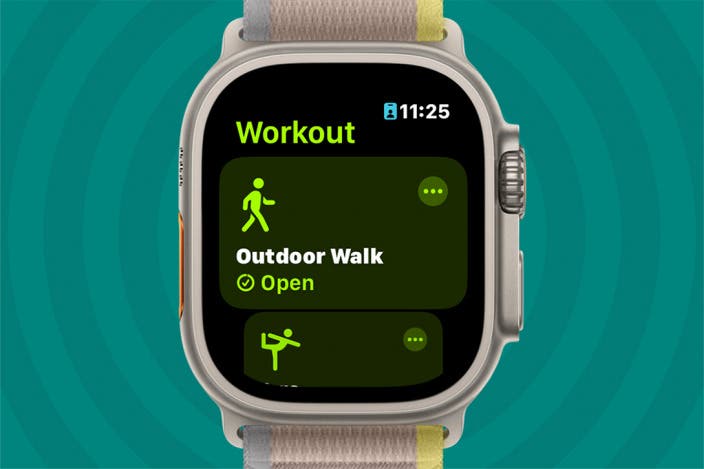
Adding a new workout to Apple Fitness helps track your exercise easily. It allows you to customize your routine and measure progress. The process is simple and user-friendly. Start by choosing the right workout type. Then, set clear goals to stay motivated and focused.
Choosing Workout Type
Apple Fitness offers many workout types to suit your needs. You can pick from running, cycling, yoga, strength training, and more. Selecting the correct type ensures accurate tracking of calories burned and workout duration. It also helps the app provide better feedback and tips. Tap the workout category that matches your activity. This choice makes your fitness data more useful and reliable.
Setting Workout Goals
Setting workout goals helps you stay motivated and reach targets. You can set goals based on time, calories, or distance. For example, choose a 30-minute workout or burn 200 calories. Clear goals keep your workouts focused and effective. Apple Fitness shows your progress in real-time. Adjust goals as you improve to keep challenging yourself. This habit builds consistency and makes workouts rewarding.
Tracking Progress
Tracking progress is key to staying motivated and making the most out of your workouts with Apple Fitness. It helps you see where you started, how far you’ve come, and what adjustments you might need to hit your goals. When you actively track your progress, every workout becomes more purposeful and rewarding.
Monitoring Metrics
Apple Fitness offers a variety of metrics to keep an eye on, such as calories burned, heart rate, and exercise minutes. These numbers tell a story about your workout intensity and overall fitness level.
Pay attention to trends over time rather than daily fluctuations. For example, if your average heart rate during workouts is decreasing while maintaining the same effort, it indicates improved fitness.
Have you noticed how tracking your metrics pushes you to challenge yourself just a bit more? It’s like having a personal coach cheering you on through your Apple Watch.
Adjusting Goals
Your initial goals might need tweaking as you progress. Apple Fitness lets you update your daily Move, Exercise, and Stand goals anytime.
Try setting goals that stretch your limits but remain achievable. If you consistently hit your targets, increasing them gradually keeps you engaged and avoids plateaus.
Consider adjusting your goals based on your lifestyle changes or new fitness interests. Are you ready to push harder or need to dial back for recovery? Your goals should reflect your current needs.
Utilizing Additional Features
Adding workouts to Apple Fitness doesn’t have to stop at the basics. You can make your fitness routine more dynamic by using extra features that Apple Fitness offers. These features help you stay motivated and track your progress in more personalized ways.
Using Guided Workouts
Guided workouts provide step-by-step instructions and real-time feedback, making it easier to follow along. Apple Fitness offers a variety of guided sessions like yoga, strength training, and HIIT, which you can add directly to your workout list.
These workouts are led by professional trainers who explain each move clearly. This approach helped me stay consistent when I struggled to create my own routines. Have you tried following a guided workout that feels like having a personal coach at home?
Integrating Third-party Apps
You can expand your Apple Fitness experience by connecting third-party fitness apps. Apps like Strava, MyFitnessPal, and Nike Training Club sync with Apple Fitness, allowing you to add their workouts seamlessly.
This integration means your workout data stays centralized, making it easier to track your overall progress. I found that linking my favorite running app helped me see a more complete picture of my fitness journey. Which apps do you use that could work well with Apple Fitness?
Troubleshooting Common Issues
Adding workouts to Apple Fitness usually works smoothly. Sometimes, users face small problems. These issues can stop workouts from syncing or cause the app to crash. Understanding how to fix these common problems helps keep your fitness tracking on track.
Resolving Sync Problems
Sync problems happen when workout data does not update across devices. Check your internet connection first. A weak or no connection stops syncing.
Make sure Bluetooth is on for devices connected to Apple Fitness. Restart both your iPhone and Apple Watch. This often clears minor glitches.
Check the Apple Fitness app permissions. The app needs access to Health data and Bluetooth to sync correctly. Go to Settings > Privacy > Health, and enable permissions.
Sign out and back into your Apple ID. This refreshes your account and can fix syncing issues.
Fixing App Crashes
App crashes can interrupt your workout tracking. Close the app completely, then open it again. This clears temporary bugs.
Update the Apple Fitness app and your device’s operating system. Updates often include bug fixes that improve app stability.
Clear space on your device. Low storage can cause apps to crash. Delete unused apps or files to free up memory.
If crashes continue, uninstall and reinstall the app. This resets the app to its original state.

Credit: www.tiktok.com

Credit: www.youtube.com
Frequently Asked Questions
How Do I Add A Custom Workout To Apple Fitness?
To add a custom workout, open the Fitness app, tap “Workouts,” then select “Add Workout. ” Choose your type, duration, and start tracking.
Can I Sync Third-party Workouts With Apple Fitness?
Yes, Apple Fitness supports syncing with some third-party apps like Strava or MyFitnessPal. Ensure app permissions are enabled for data sharing.
How To Track Indoor Workouts Using Apple Fitness?
Select “Indoor” workout types like treadmill or cycling in the Fitness app. The app uses sensors to accurately track your activity indoors.
Is It Possible To Add Multiple Workouts In One Day?
Yes, Apple Fitness allows multiple workouts daily. Just start and save each workout separately to track all activities accurately.
Conclusion
Adding workouts to Apple Fitness helps you track your progress easily. You can choose exercises that fit your goals and schedule. The app keeps your fitness data organized and accessible. Regular use makes staying active simple and fun. Start adding workouts today to build a healthy routine.
Small steps lead to big changes in your fitness journey. Keep moving and enjoy the benefits of staying fit.


