How to Use Fitness App on Apple Watch: Ultimate Guide for Beginners
Are you ready to make every workout count with your Apple Watch? Using a fitness app on your watch can turn simple steps into real progress.
Imagine tracking your moves, heart rate, and calories right from your wrist—effortlessly and accurately. Whether you’re just starting out or pushing your limits, this guide will show you exactly how to use your fitness app to stay motivated and reach your goals faster.
Keep reading, and you’ll discover tips and tricks that make staying active easy and even fun. Your best fitness journey starts here.
Credit: www.iphonelife.com
Setting Up Your Apple Watch
Getting your Apple Watch ready for fitness tracking is the first important step toward a healthier lifestyle. Setting up your device properly ensures you get accurate data and a smooth experience while using the Fitness app. Let’s walk through the essential tasks you need to complete before diving into your workouts.
Pairing With Your Iphone
Start by turning on your Apple Watch and holding it close to your iPhone. A pairing screen should automatically appear on your iPhone. If it doesn’t, open the Apple Watch app manually.
Follow the on-screen instructions to scan the animation on your watch with your iPhone’s camera. This simple step links the two devices securely. Make sure both devices are updated to the latest software version to avoid compatibility issues.
Once paired, you can customize settings like notifications, location services, and privacy preferences. Have you noticed how much easier it is to track your progress when your devices sync seamlessly?
Installing The Fitness App
The Fitness app usually comes pre-installed on your Apple Watch, but if you don’t see it, here’s what to do. Open the App Store on your watch or your iPhone’s Watch app, then search for “Fitness.”
Tap “Get” or the download icon to install the app. After installation, open the app and grant the necessary permissions for health and activity data. This ensures accurate tracking of your workouts and daily activity.
Remember, the Fitness app works best when it has access to your heart rate and motion sensors. Are you ready to see your daily progress in real-time with this powerful tool on your wrist?
Navigating The Fitness App
Navigating the Fitness app on your Apple Watch can feel overwhelming at first. But once you get familiar with the layout, it becomes a powerful tool to track your health and motivate you throughout the day. Let’s break down how to move through the app and understand the key features that keep you informed and inspired.
Understanding The Main Dashboard
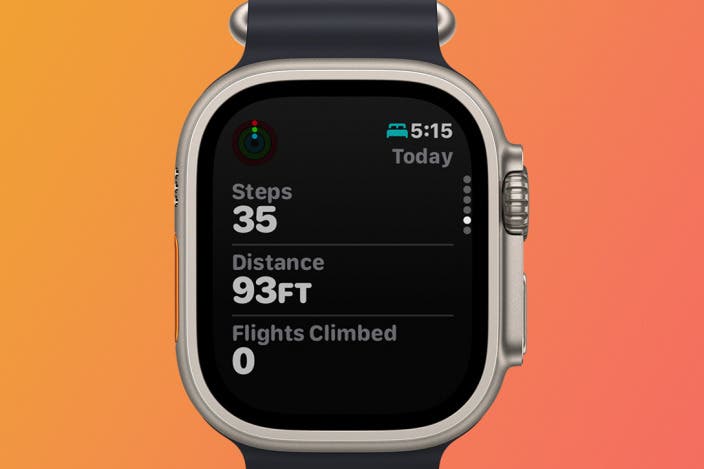
The main dashboard is your starting point in the Fitness app. It shows a clear summary of your daily activity at a glance. You’ll see your Move, Exercise, and Stand goals presented in a simple, colorful layout.
Swipe up or down to view more details about each goal. Tap on any section to get deeper insights, like how many calories you’ve burned or how long you’ve exercised. This easy navigation helps you stay on top of your progress without needing to dig through complex menus.
Exploring Activity Rings
The three activity rings are the heart of the Fitness app. Each ring represents a different goal: Move, Exercise, and Stand. Closing these rings means you’ve hit your daily targets, which can be surprisingly motivating once you start seeing your progress.
- Move Ring:Tracks active calories burned. Focus on raising this by doing anything that gets you moving.
- Exercise Ring:Counts minutes of brisk activity. Think of it as your daily workout tracker.
- Stand Ring:Encourages you to stand and move for at least one minute every hour.
Have you noticed how small changes, like standing during phone calls or taking short walks, help close these rings? The app makes it easy to spot these opportunities. Try checking your rings mid-day to adjust your activity and meet your goals by evening.
Tracking Workouts
Tracking your workouts on the Apple Watch helps you stay motivated and see real progress over time. The Fitness app is designed to make this process simple and effective, whether you’re running, cycling, or doing yoga. Understanding how to choose the right workout and properly start and end your sessions will give you the most accurate data and a better fitness experience.
Choosing A Workout Type
The Apple Watch offers a wide range of workout types, from traditional exercises like running and swimming to mindful activities such as yoga or cooldown stretches.
Choosing the correct workout type matters because it lets the watch tailor its tracking to your specific activity, capturing the right metrics like heart rate, pace, and calories burned.
Ask yourself what your primary goal is during the session—do you want to build endurance, burn fat, or improve flexibility? Selecting the workout that fits your goal helps you stay focused and get relevant feedback.
- Outdoor Run:Tracks distance, pace, and elevation changes.
- HIIT:Monitors high-intensity intervals with heart rate variability.
- Swimming:Waterproof tracking for laps and stroke count.
- Yoga:Measures heart rate and active calories during your session.
Once you pick the right workout type, the Apple Watch automatically adjusts its sensors and algorithms to give you the most accurate data.
Starting And Ending A Workout
Starting a workout on your Apple Watch is straightforward but doing it right can make a big difference in data accuracy.
Before you begin, double-check that the workout type matches what you plan to do. This ensures the watch tracks the correct metrics from the start.
To start a workout:
- Open the Workout app on your Apple Watch.
- Scroll or search for your chosen workout type.
- Tap the workout and wait for the countdown to begin.
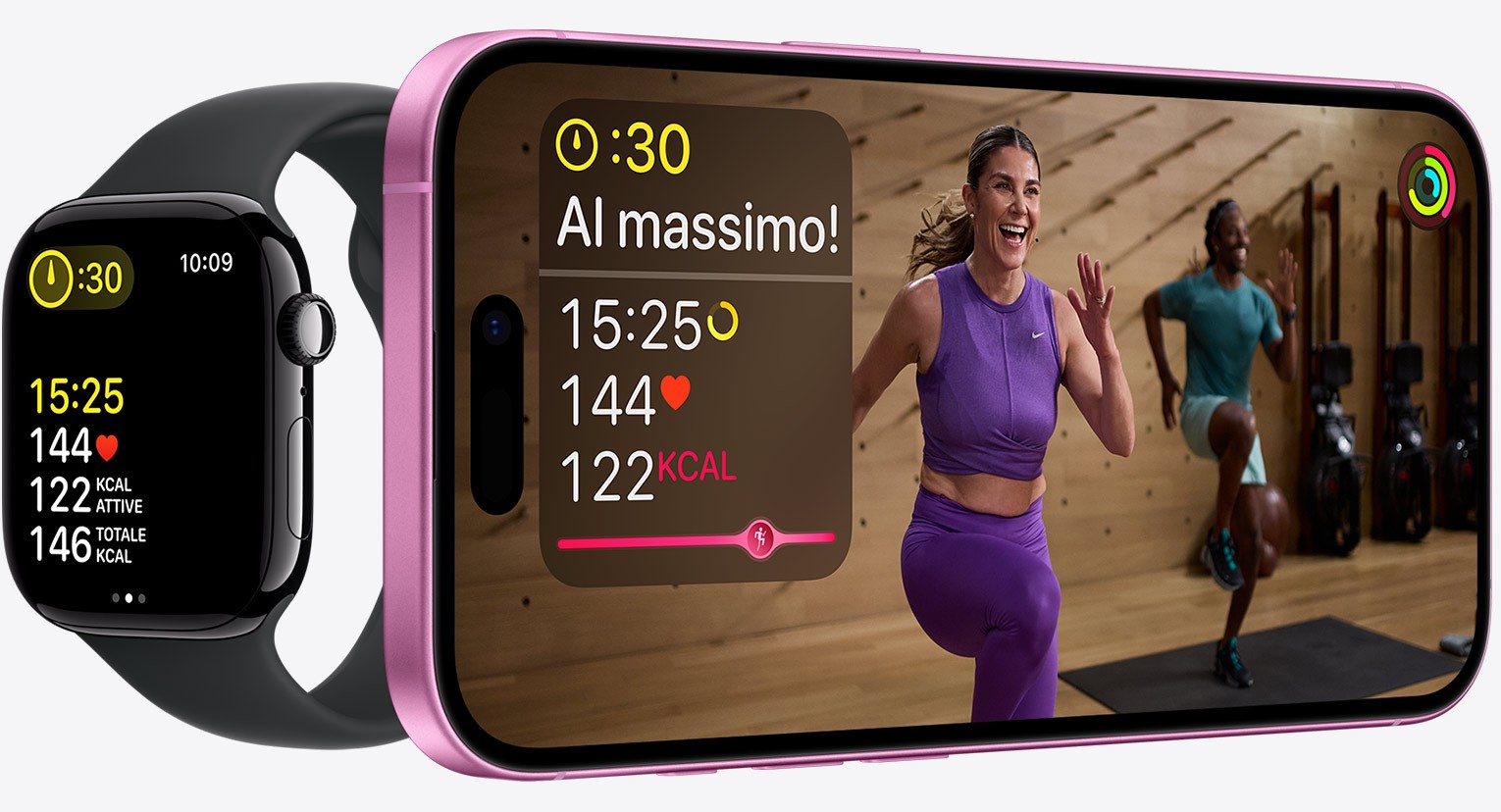
During the workout, you can glance at your watch to monitor your progress, like heart rate or distance covered.
When you finish, don’t forget to end the workout manually. Simply swipe right and tap “End” or press the side button to stop tracking.
Failing to end your workout means your session will keep recording, which can inflate your activity data and confuse your progress reports.
Have you ever checked your stats only to find your rest time counted as active minutes? Paying attention to starting and stopping your workouts correctly avoids this common mistake.
Credit: www.cec.com
Monitoring Health Metrics
Monitoring your health metrics with the Fitness app on your Apple Watch gives you real-time insights into your body’s performance. This feature helps you stay connected to your health and make informed choices throughout the day. You don’t need to be a fitness expert to understand the data—your watch does the hard work of tracking and presenting it clearly.
Heart Rate Monitoring
Your Apple Watch continuously measures your heart rate during workouts and throughout the day. This data helps you see how your heart responds to different activities, from resting to intense exercise. You can check your heart rate anytime by opening the Heart Rate app or viewing the summary in the Fitness app.
Noticing unusual spikes or drops can signal when to take a break or push harder. Have you ever seen your heart rate rise during a stressful meeting? The watch can confirm what you feel and prompt you to take calming breaths or a quick walk.
Calorie Tracking
Calories burned are tracked based on your movement, heart rate, and workout type. The Fitness app breaks down your active calories versus total calories, helping you understand how much energy you use daily. This info is crucial if you’re managing weight or trying to boost fitness levels.
For example, after a brisk walk, your watch shows the calories burned, motivating you to add a few more steps or another short workout. It’s like having a personal coach in your wrist, nudging you to reach your goals.
Personalizing Your Experience
Personalizing your fitness app on the Apple Watch makes your workout sessions more effective and enjoyable. Tailoring the settings to fit your lifestyle and preferences helps you stay motivated and track progress in a way that feels natural. You’ll find that small adjustments can make a big difference in how you engage with your fitness goals every day.
Setting Goals
Start by defining clear, achievable goals that match your fitness level and lifestyle. The Apple Watch allows you to set daily targets for calories burned, exercise minutes, and standing hours. Adjust these goals as you improve or if your routine changes, so the app stays challenging without being overwhelming.
Think about what motivates you most. Do you want to build endurance, lose weight, or simply move more throughout the day? Setting specific goals helps the watch provide tailored feedback and nudges that keep you on track.
Customizing Notifications
Notifications can be powerful reminders or annoying distractions. Customize them so they encourage you without interrupting your flow. You can choose to receive alerts for achieving milestones, reminders to stand, or motivational prompts after periods of inactivity.
Consider the times you’re most focused or busy, and adjust notification settings accordingly. For example, silence alerts during meetings but allow them during workout sessions. This way, your Apple Watch becomes a supportive coach rather than a source of frustration.
Integrating With Other Apps
Integrating your Apple Watch fitness app with other applications enhances your health tracking experience. It helps keep all your fitness data in one place for easy access. This integration makes it simple to monitor progress and stay motivated. Below are key ways to connect your fitness app with other tools.
Syncing With Health App
The Apple Watch fitness app automatically syncs with the Health app on your iPhone. This sync collects data like steps, workouts, and heart rate. It creates a comprehensive view of your daily activity and overall health. You can check all your fitness stats in the Health app anytime.
To ensure syncing works smoothly:
- Open the Health app on your iPhone.
- Go to your profile and select “Apps.”
- Find the fitness app and allow data sharing.
This process helps track your fitness goals more accurately and consistently.
Connecting Third-party Apps
Many third-party apps can link with your Apple Watch fitness app. These apps offer additional features like meal tracking, running routes, or guided workouts. Connecting them broadens your fitness tools and personalizes your routine.
To connect third-party apps:
- Download the app on your iPhone.
- Open the app and find the settings or integrations menu.
- Allow the app to access your Apple Watch fitness data.
Once connected, data flows between apps, giving you a full picture of your health. This integration supports better planning and progress tracking.
Tips For Maximizing Benefits
Maximizing the benefits of your fitness app on Apple Watch helps you stay motivated and track progress better. Small habits can make workouts more effective and enjoyable. These tips will help you get the most out of your app and watch.
Regularly Update Your App
Updating your fitness app keeps it running smoothly and adds new features. Developers fix bugs and improve tracking accuracy in updates. An outdated app may miss important data or crash during workouts. Set your phone to update apps automatically or check for updates weekly. This ensures the app stays reliable and offers the latest tools for fitness.
Use Challenges And Competitions
Challenges push you to move more and stay active every day. The Apple Watch fitness app offers daily and monthly challenges to keep you engaged. Joining competitions with friends adds fun and friendly rivalry. It creates a sense of community and motivates you to reach your goals. Track your progress and celebrate small wins to build confidence and keep going strong.

Credit: www.yahoo.com
Troubleshooting Common Issues
Using a fitness app on your Apple Watch should be smooth, but sometimes issues pop up that can disrupt your workout tracking. Troubleshooting these common problems quickly helps you get back on track without losing important data. Let’s look at practical ways to fix sync issues and app crashes that you might encounter.
Resolving Sync Problems
Sync problems between your Apple Watch and iPhone can be frustrating, especially when your workout data doesn’t update. Start by making sure both devices are close to each other and have Bluetooth enabled.
If that doesn’t work, try toggling Airplane Mode on your watch for about 10 seconds, then turn it off. This often resets the wireless connections and gets syncing going again.
You can also force quit the fitness app on both devices and reopen it. Sometimes the app just needs a fresh start to reconnect properly.
Have you checked if your iPhone’s software and the app are updated? Outdated versions can cause compatibility issues that block syncing.
Fixing App Crashes
App crashes can interrupt your workout tracking and cause frustration. If your fitness app crashes on the Apple Watch, first try restarting the watch by holding the side button and sliding to power off.
Clearing the app’s cache or reinstalling it on your watch can also help fix corrupted data causing crashes. Don’t worry—your workout history is usually saved in the cloud or on your iPhone.
Look at the available storage on your Apple Watch as well. Low storage can make apps unstable and prone to crashing.
Have you noticed if the crashes happen during specific activities or after certain updates? Identifying patterns can help you or Apple support pinpoint the problem faster.
Frequently Asked Questions
How Do I Set Up The Fitness App On Apple Watch?
Open the Fitness app on your Apple Watch. Follow the prompts to enter your health details. Sync with the Health app on your iPhone for full functionality.
Can I Track Different Workouts Using Apple Watch?
Yes, Apple Watch supports multiple workouts like running, cycling, swimming, and yoga. Select your workout type in the Fitness app before starting.
How Does Apple Watch Measure Calories Burned?
Apple Watch uses heart rate, motion sensors, and personal data. It combines these to estimate active and total calories burned accurately.
Is The Fitness App Compatible With Other Fitness Apps?
Yes, the Fitness app integrates with many third-party apps. You can sync data to track your progress in one place.
Conclusion
Using the Fitness app on your Apple Watch helps you stay active every day. It tracks your steps, calories, and workouts with ease. You can set simple goals and see your progress clearly. Small changes in your routine lead to better health over time.
Keep moving, check your stats often, and enjoy feeling stronger. The app fits smoothly into your daily life. Start today and watch your fitness improve little by little. Staying healthy becomes easier with this handy tool on your wrist.